Overview
Ascent360's webhook-triggered emails support advanced payload techniques that give you fine-tune control over email content on a per-send basis. This article covers how to pass HTML directly into the email via the payload and how to control Display Condition visibility through payload flags.
Before reading this article, you should be familiar with the basics of webhook-triggered emails. Not quite there yet? Read these two articles first:
Pass HTML to the Editor
When receiving the webhook and inserting merge tags, Ascent360 is adding to the existing HTML document for the email. If you want fine-tune control over certain elements of the email (or even the entirety of the email), you may choose to pass in HTML in the JSON. Consider these use cases:
- Include a button that links to a URL that is specific to an individual, like an abandoned cart or a waiver.
- Include an itemized list where the list length varies between recipients (cart contents or receipts).
- Replace the entire contents of the email dynamically.
When you pass in HTML, take note of the following:
- The HTML in the JSON should not include the
<HTML>or<Head>tags. Your provided HTML will be wrapped in these tags. - Use inline styling to achieve element customization.
- Image references should be publicly available.
- The double quotes within the HTML need to be escaped using a
\character before the double quote to be acceptable in JSON format (see examples below).
Example 1: Pass in a Button with a Dynamic Link
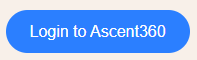
Include HTML for the button in place of the "button" merge tag.
{"recipient": "emailaddress@test.com","button": "<a href=\"https://clients.ascent360.com\" style=\"display: inline-block; padding: 12px 24px; font-size: 16px; color: #ffffff; background-color: #2b7fff; text-decoration: none; border-radius: 25px; font-family: Arial, sans-serif;\">Login to Ascent360</a>"}
Renders in the email as:
Example 2: Itemized List via a Table
For consistent formatting of itemized lists, you may wish to pass in an HTML table.
{"recipient": "emailaddress@test.com","receiptData": "<table width=\"100%\" cellpadding=\"10\" cellspacing=\"0\" border=\"0\" style=\"border-collapse: collapse; font-family: Arial, sans-serif; max-width: 600px; margin: auto; background-color: #ffffff; border: 1px solid #dddddd;\"><tr style=\"background-color: #2b7fff; color: #ffffff;\"><th align=\"left\" style=\"padding: 12px;\">Item</th><th align=\"center\" style=\"padding: 12px;\">Quantity</th><th align=\"right\" style=\"padding: 12px;\">Price</th></tr><tr><td style=\"border-top: 1px solid #dddddd;\">Single Tube Rental</td><td align=\"center\" style=\"border-top: 1px solid #dddddd;\">2</td><td align=\"right\" style=\"border-top: 1px solid #dddddd;\">$30.00</td></tr><tr><td style=\"border-top: 1px solid #dddddd;\">Cooler Tube Rental</td><td align=\"center\" style=\"border-top: 1px solid #dddddd;\">1</td><td align=\"right\" style=\"border-top: 1px solid #dddddd;\">$15.00</td></tr><tr><td style=\"border-top: 1px solid #dddddd;\">Life Jacket Rental</td><td align=\"center\" style=\"border-top: 1px solid #dddddd;\">2</td><td align=\"right\" style=\"border-top: 1px solid #dddddd;\">$10.00</td></tr><tr style=\"font-weight: bold;\"><td colspan=\"2\" align=\"left\" style=\"border-top: 2px solid #2b7fff;\">Total</td><td align=\"right\" style=\"border-top: 2px solid #007BFF;\">$55.00</td></tr></table>"}
Renders in the email as:

Example 3: Replace the Entire Content of the Email Dynamically
Rather than swapping out individual merge tags in the email, you may choose to replace the entirety of the email on-the-fly. To do this, place one merge tag in the email design for the rest of the elements to be passed in with each call.

{"recipient": "emailaddress@test.com","receiptData": "<body style=\"margin: 0; padding: 0; font-family: Arial, sans-serif; background-color: #f4f4f4;\"><table width=\"100%\" cellpadding=\"0\" cellspacing=\"0\" border=\"0\" style=\"background-color: #f4f4f4;\"><tr><td align=\"center\"><table width=\"600\" cellpadding=\"20\" cellspacing=\"0\" border=\"0\" style=\"background-color: #ffffff; margin-top: 20px; border-radius: 8px;\"><tr><td align=\"center\" style=\"background-color: #007BFF; color: #ffffff; font-size: 24px; font-weight: bold; border-top-left-radius: 8px; border-top-right-radius: 8px;\">How did we do?</td></tr><tr><td style=\"color: #333333; font-size: 16px; line-height: 1.5;\"><p style=\"margin: 0 0 5px 0;\">John,</p><p style=\"margin: 0 0 10px 0;\">How was your visit? We would love to hear from you on how we can improve.</p></td></tr><tr><td align=\"center\" style=\"padding: 20px;\"><a href=\"https://example.com\" style=\"background-color: #f27c85; color: #ffffff; padding: 12px 24px; text-decoration: none; border-radius: 25px; display: inline-block;\">Start Survey</a></td></tr><tr><td><p style=\"margin: 0; line-height:1.5;\">Cheers,<br><strong>Clear Creek Rentals</strong></p></td></tr></table></td></tr></table></body>"}
Renders in the email as:

Leverage Display Conditions in a Payload
Ascent360 allows you to control the visibility of Dynamic Content Rows (or Display Conditions) via a flag provided in the payload. This feature allows your data transmission process to make decisions on a per-send basis for which Dynamic Content Rows to show in any particular send based on any information at your disposal at the time of the trigger. Consider these use cases:
- You may have a process that listens for form submissions on multiple different forms on your site and triggers an email out of Ascent360. Depending on the form submitted, you may choose to show or hide different rows in the email.
- You may use information about facilities and parking information to show or hide rows in a snow/conditions report email.
When controlling Display Conditions via a payload, take note of the following:
- Display Conditions are controlled by a boolean
true/falsein the payload. - If you are sending to an individual (not an audience), the exact condition that you create in the email editor (for example, State Name = Colorado) does not matter; the condition will always be evaluated against a
true/falseprovided in the payload. - The visibility of the row takes precedence over the merge tags that may be within the row. For example, if a user has a Dynamic Content Row that contains two merge tags but states that the row should be hidden in the payload, the row will be hidden and any values provided for the merge tags in the payload will be ignored.
- For triggered emails that are configured to send to an audience, the Display Condition flag in the payload will take precedence over data in the CDP. If the Display Condition flag is omitted, the Display Condition will be evaluated for each individual based on the data in the CDP.
{"Recipient Email Address": "example@test.com","fname": "John","lname": "Doe","Display Conditions": {"Row1": true,"Row2": false}}
In this example, the row associated with "Row1" will be visible and the row associated with "Row2" will be hidden.

