Once you've configured a webhook-triggered email in Ascent360, this article covers how to send, test, monitor, and troubleshoot your webhook-triggered emails.
For initial setup instructions, see How to Set Up a Webhook-Triggered Email. For advanced payload techniques, see Advanced Techniques for Webhook-Triggered Emails.
Sending a Webhook-Triggered Email
Whenever you wish to send the email, send an HTTP POST to the webhook URL provided along with a payload, if necessary. This can be done manually (using an HTTP request platform like Postman) or the webhook can be called from an automated process in an external system.
🚨Important: Avoid Clicking Webhook URLs During Setup 🚨
When setting up webhook-triggered emails that send to an audience (rather than a single recipient specified in the payload), clicking the webhook URL directly in your browser is enough to trigger an email send. This is because opening the URL performs a GET request with an empty payload, which will fire the trigger and send the email to your entire audience with all merge tags rendering as blank. To avoid unintended sends during setup and testing, always copy and paste the webhook URL rather than clicking it directly.
Ascent360 has a size limit of 50MB on the JSON payload. If your payload is properly structured JSON and under the size limit, Ascent360 will respond with a 200 OK and the webhook will remain in a "Ready to Process" state for up to one minute and then attempt the send.
Note: Providing data through the webhook payload is a great way to leverage data that is either not yet in the CDP (due to overnight timing) or won't be added to the CDP (because it isn't named in the integration or necessary in the CDP). Data that is passed in and used in an email through a payload will not be formally added to the CDP as part of this process.
For example, if you are sending a booking confirmation from a Property Management System (PMS) or activities system, Ascent360 still needs to be integrated directly with that system to import the data through the standard nightly process. If all you need to do is send the email and you don't need to see data about the booking on the customer record or in Audience Builder, a direct integration is not needed.
If you wish to leverage a webhook-triggered email for confirmations, you should also double-check that you don't have active recurring sends based on the data flowing in overnight.
Test Sends
All webhook-triggered emails support a key called "TestRecipient" that you can use to override the recipient configuration on the email. Whenever "TestRecipient" is provided in the payload, the email will only be sent to the email address named in TestRecipient, even if the email is configured to send to an audience or another key/value pair is mapped as the recipient email address. This is especially helpful for configurations that are set to deliver to an audience; by using "TestRecipient", you can leverage the existing configuration without altering or duplicating the setup.
Example where the email recipient is named in the payload:
{"TestRecipient":"example@gmail.com","EmailRecipient":"guest@example.com","confirmationNumber":"123XYZ","arrivaldate": "2026-01-12"}
In this example, the email will be sent to only the TestRecipient address (example@gmail.com). The Emailrecipient value will be ignored in favor of TestRecipient. Merge tags such as confirmationnumber and arrivaldate will still evaluate if mapped.
Example where the email is pointing at an audience:
{"TestRecipient":"example@gmail.com","confirmationNumber":"123XYZ","arrivaldate": "2026-01-12"}
In this example, the email will be sent to only the TestRecipient address. The configured audience will be ignored. Merge tags will still evaluate if mapped.
Merge Tag Precedence
When receiving a POST to the webhook, Ascent360 will insert dynamic data into the email send based on the following order of precedence.
When Sending to an Audience
- Ascent360 will look for mapped data in the payload first and insert it into the email. This applies to both custom-declared merge tags and CDP field merge tags.
- For non-custom CDP fields that are not found in the payload, Ascent360 will try to fill in the data from the individual's record in the CDP.
- For merge tags that are not found in the payload or in the CDP, Ascent360 will use the default value for that merge tag.
- If there is no payload data, CDP data, or default value, the merge tag will evaluate to a null and appear as a blank space in the email.
When Providing the Recipient in the Payload
- Ascent360 will look for mapped data in the payload first and insert it into the email.
- Sending an email with the recipient in the payload bypasses the CDP (permissions and other data). Therefore, all relevant merge tag data for the email should be mapped and provided in the payload.
- For merge tags that are not found in the payload, Ascent360 will use the default value for that merge tag.
- If there is no payload data or default value, the merge tag will evaluate to a null and appear as a blank space in the email.
View Webhook History, Resend, and Update Mapping
You may click the 3 Dots on the triggered email card in the Design Library to view recent request history, view the webhook for the email, and update the mapping. 
This is also where you may wish to attempt the send again via the Resend action. After clicking Resend, the webhook will enter the queue to process again using the data originally received. Ascent360 processes queued webhooks every 60 seconds.
You may click the 3 Dots on the triggered email card in the Design Library to View & Edit Mapping to view the existing mapping configuration for the email. If the structure of your payload has updated since the original configuration, you may choose to update the mapping from this screen (without needing to fully disable and reconfigure the email).
Webhook Trigger Examples
Send to an Audience Example
Below is an example of sending a webhook-triggered snow report email to an audience.
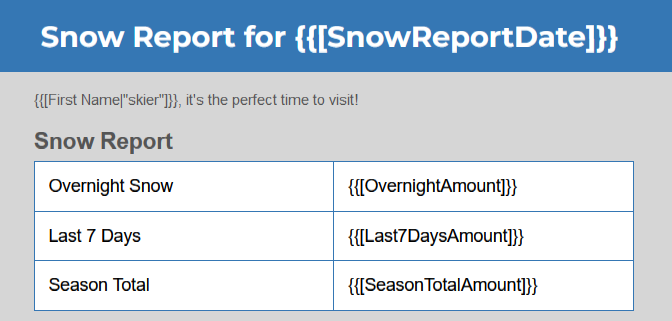
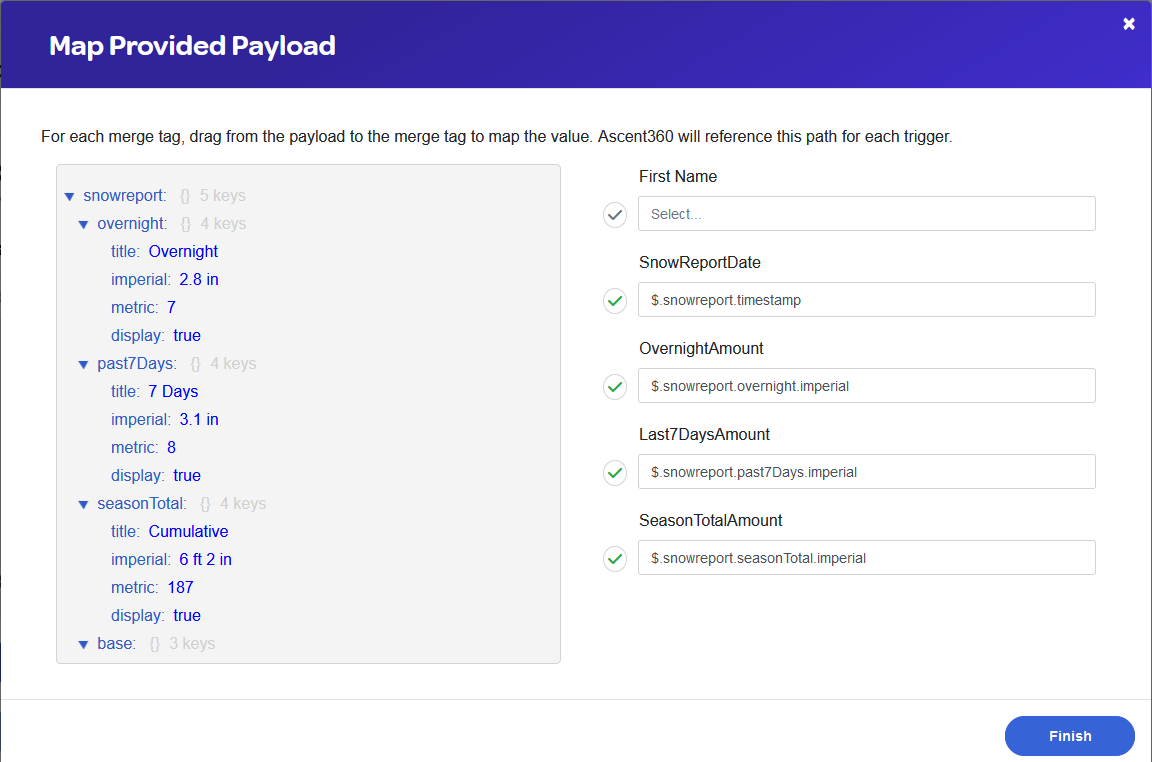
This email is sent to an audience of individuals who have signed up for snow reports. Because we are sending to an audience, the merge tag for First Name does not need to come from the payload data and will not be mapped.
Send to a Recipient Example
Below is an example of sending a webhook-triggered email as a confirmation email for an activity booking.
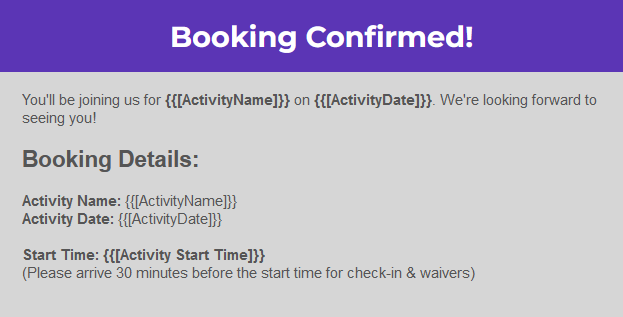
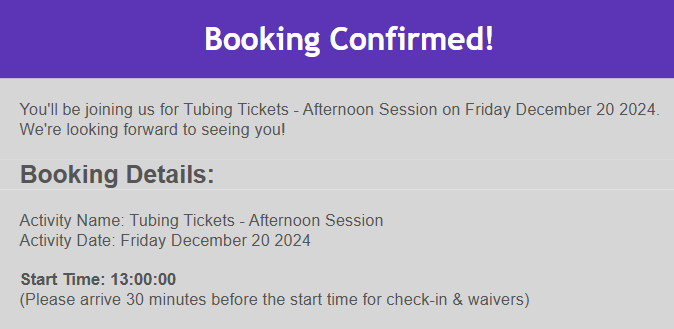
After mapping, the resulting email looks like this:
If you have questions, please contact our support team. We're here to help!

