Settings > Email > Commenting
The Ascent360 Email Sending Platform (ESP) includes a commenting feature that allows your team to collaborate directly on email designs. Team members can leave comments on specific elements within the email editor, mention colleagues by name, reply to ongoing threads, and resolve conversations when feedback has been addressed. This article covers how to enable commenting, how the notification system works, and how to manage your notification preferences.
Enabling Commenting
Commenting is controlled at the organization level from the Email tab in Settings. A user with access to the Email settings tab can toggle the Commenting setting on or off.

When commenting is toggled On, all users with access to the ESP will be able to view and add comments within the email editor. When commenting is toggled Off, the ability to add new comments is hidden, and any existing comments are no longer displayed in the editor.
Note: Commenting applies to the ESP email editor only. The Landing Pages editor does not support commenting at this time.
Using Comments in the Email Editor
Once commenting has been enabled, you can add comments directly to rows or content blocks within the email editor. Comments are organized into threads, allowing your team to have focused conversations about specific parts of an email design.
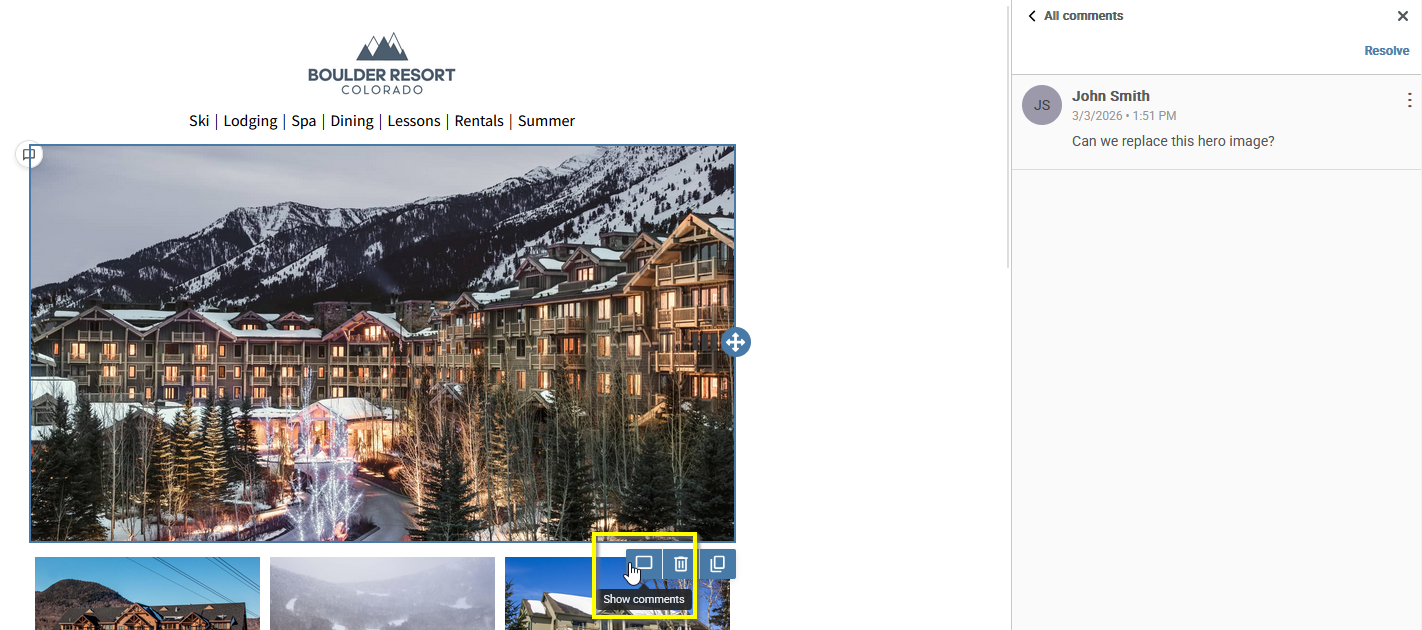
Each comment thread can be resolved once the feedback has been addressed. Any user with access to the email can mark a thread as resolved.
Mentioning Other Users
The commenting system supports @mentions, allowing you to tag specific teammates in a comment. When typing a comment, enter the @ symbol followed by the person's name to see a list of mentionable users.
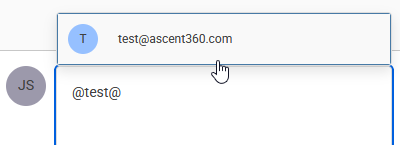
The list of mentionable users includes anyone in your organization who has the Email or ESPAdmin role. Type to filter the list. Users who do not have access to the ESP will not appear in the mention list.
Notification Types
When commenting is enabled, you can subscribe to email notifications that alert you to activity on your email designs. There are four notification types available under the Email Activity section of your notification preferences.
New Comment Added notifies you whenever any user adds a new comment to any email in your organization. This is the broadest notification type and is useful if you want full visibility into all commenting activity.
Direct Mention notifies you when another user specifically @mentions you in a comment. This is ideal if you only want to be alerted when someone directs feedback to you.
Thread Replies notifies you when a new comment is added to a thread that you have previously participated in. If you left a comment or reply on a thread, you will receive a notification when others continue that conversation.
Thread Resolved notifies you when a comment thread you participated in is marked as resolved by another user. This helps you stay informed about when feedback cycles are completed.
Each notification email includes the name of the comment author, the content of the comment, and a View Comment link that takes you directly to the relevant email and comment thread in the platform.
Note: You will never receive a notification for your own comments. Notifications are only triggered by actions from other users.
How Notification Priority Works
Because a single comment can match multiple notification types at once (for example, a reply to your thread that also @mentions you), the system uses a priority order to ensure you only receive one notification per event. This prevents you from being notified multiple times for the same comment.
The priority order is:
- Direct Mention (highest priority)
- Thread Replies / Thread Resolved
- New Comment Added (lowest priority)
If you are subscribed to multiple notification types and a comment qualifies for more than one, you will receive only the most specific notification. For example, if a teammate replies to your thread and @mentions you in the same comment, you will receive the Direct Mention notification and not the Thread Replies notification.
Managing Your Notification Preferences
Your notification preferences are managed on the My Account tab in Settings, under the Notifications section. The Email Activity subsection appears when both of the following conditions are met:
- You have the Email and/or ESPAdmin role assigned to your account.
- Commenting is toggled On in the Email tab of Settings.
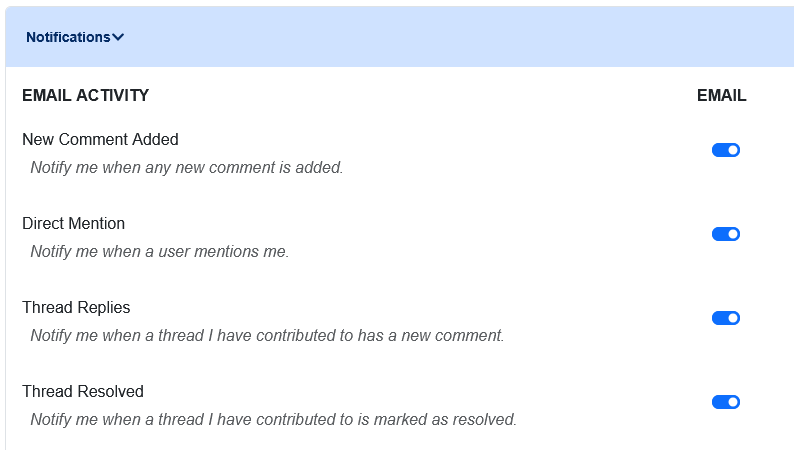
Each of the four notification types has its own toggle that you can turn on or off independently. Your notification preferences are tied to your account, so the same preferences will apply across all organizations (CDPs) that you belong to.
To stop receiving a specific type of notification, navigate to Settings > My Account > Notifications and toggle the corresponding notification off. Each notification email also includes a link to your notification preferences at the bottom of the message for quick access.
After making changes to your notification preferences, click the Save button in the top right corner of the page to commit your updates. If you navigate away from the page without saving, you will see an Unsaved Changes warning.

